AI simulator
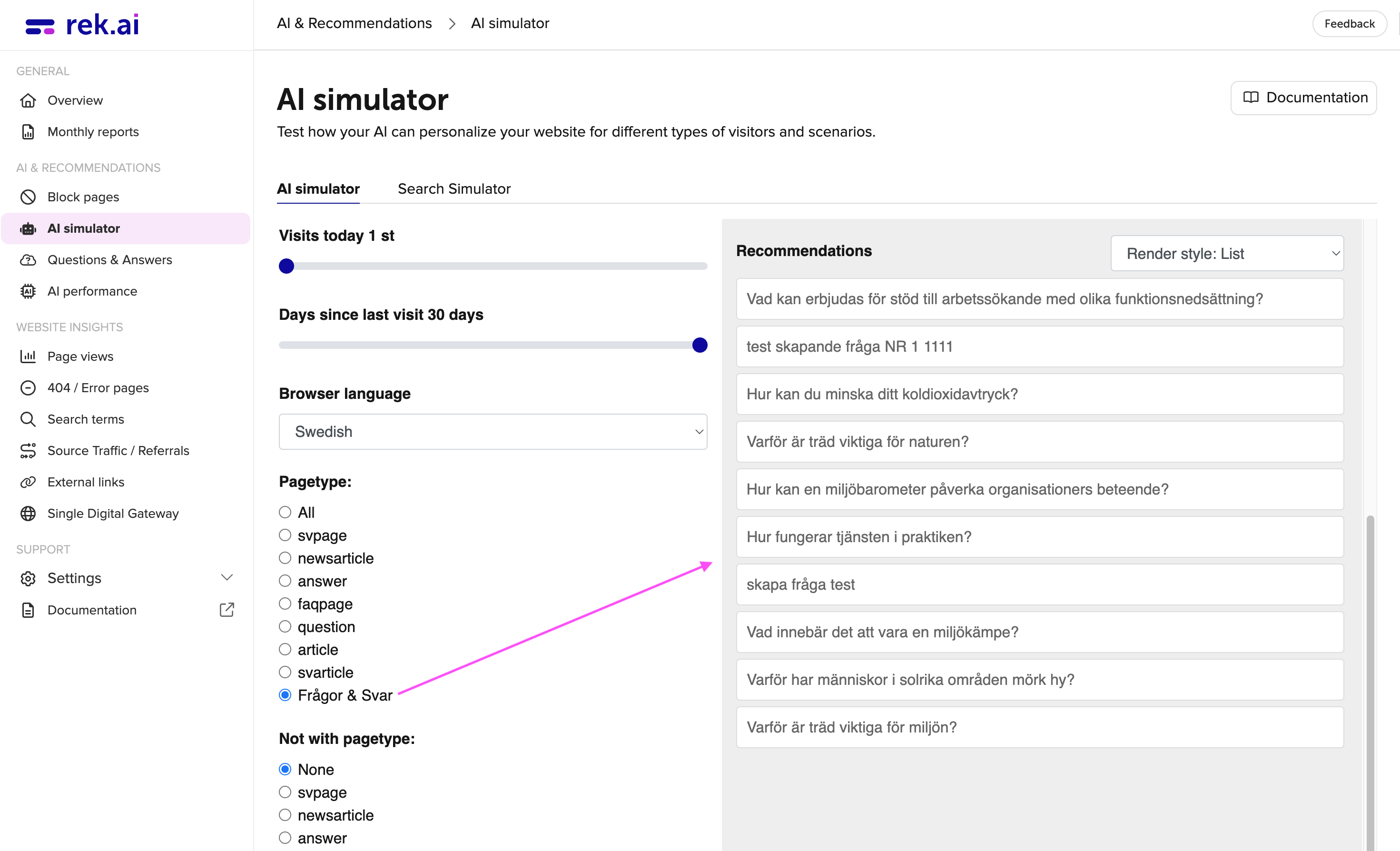
The AI Simulator (opens in a new tab) allows us to gain insight into the AI's decision-making process. Here, we can conveniently input the parameters we wish to simulate the outcome for.
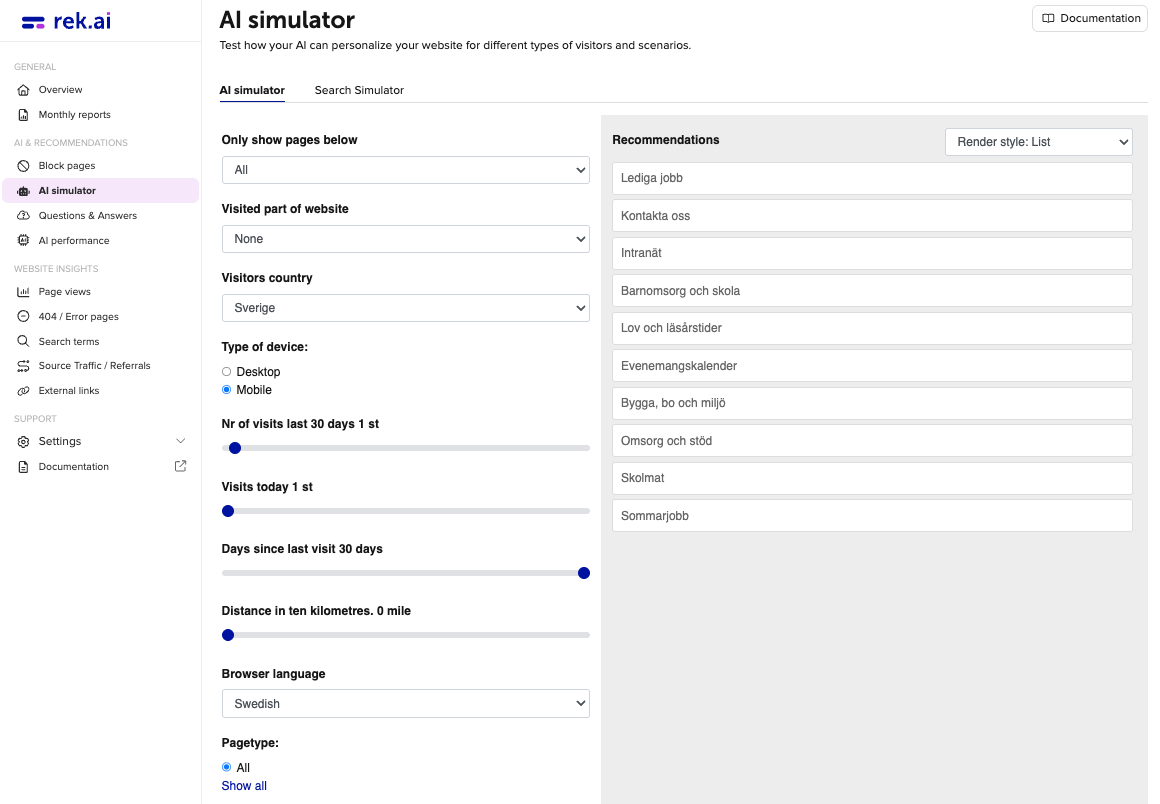
In the simulator's left column, you have the option to, among other things, select which pages you want to include in the results, determine the country of the visitors or specify the type of device being used. It's also possible to test how the autocomplete feature returns results based on the search term.
In the right column, the outcomes based on your specified parameters are displayed. Here, you can also choose to view the results as a list or with accompanying images, ensuring everything is functioning as intended. Select Render style: “List" or "News/content."
Search simulator
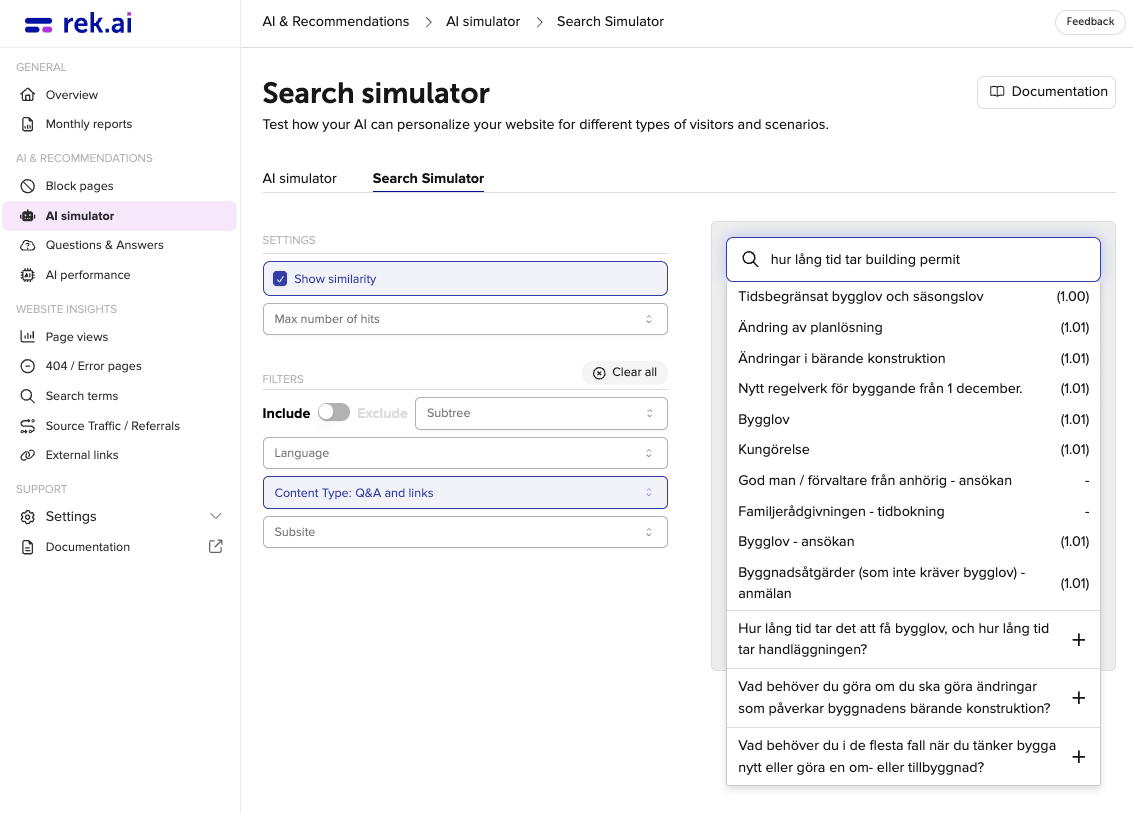
The search simulator lets you preview how search suggestions would appear on your website. It is only a simulation tool, which means that nothing you change here will affect your live site. On the left side, you can adjust filters to control which suggestions are shown.
Settings
- Show similarity: this shows how closely each result matches the search query. A lower number means a more relevant result and helps you understand how well the AI considers the match.
- Max number of hits: this controls how many results are displayed in the list.
Filters
- Include / Exclude Subtree: you can choose to only show results from a specific section of the website, or to hide results from a specific section.
- Language: this lets you limit results to a specific language, for example only English or only Swedish pages.
- Content Type: here you can decide whether to show only links, links together with Questions & Answers content (like the image above) or only Questions & Answers.
- Subsite: this allows you to limit results to a specific part of the website. For example, if you have a e-service portal, you can view suggestions only from that area.
Troubleshooting Questions & Answers
If you have approved questions that are not showing on the website, you can use the AI Simulator to troubleshoot if the issue is with the AI model not being rebuilt yet.
- Go to the AI Simulator (opens in a new tab).
- Under pagetype, select "Question & Answer".
- Do you see any questions showing in the recommendations on the right side? If not, the AI model has not been rebuilt yet and the approved questions cannot be shown on the website. If you do see questions showing, there might be another issue that is preventing them from being shown on the website. In that case, please contact our support (support@rek.ai).